Popular Post

Showing posts with label NEWS. Show all posts

First Paid Fake Android Antivirus App Downloaded 10,000 times from Google Play Store

By : Unknown

First Paid Fake Android Antivirus App Downloaded 10,000 times from Google Play Store


VIRUS SHIELD GOOGLE PLAY STORE
Well, we all are very conscious, when it comes to the security of our personal information, security of our financial data and security of everything related to us. In the world of Smart devices where our Smartphones knows more than we know ourselves.
To keep our device protected from harmful viruses, malware or spyware, we totally depend on various security products such as antivirus, firewall and privacy guard apps, that we typically install from some trusted sources, Google Play Store. Most Antivirus apps are available to download for free, but some of them are paid with extra premium features like advance firewall protection, anti theft, App Locker or Cloud Backup etc.
But do you believe that just because you're downloading an application from an official app store and also if its a premium paid version, you're safe from malicious software? Think twice.

PAID, BUT FAKE ANTIVIRUS APP
In Past, Mobile Security Researchers had spotted numerous fake mobile antivirus scanners that were available for free download at Google's Play marketplace, but its the first time when a cyber criminals are offering a fake, but paid Antivirus Solution called ‘Virus Shield’ for your Android device at Google’s play store.
Virus Shield masquerade itself as an antivirus that claims to "protect you and your personal information from harmful viruses, malware, and spyware" and also "Improve the speed of your phone," which it does with just a click. 
Moreover, it claims to have least effect on battery, run in the background, and in addition it also acts as adblock software that will stop those "pesky advertisements," which we deal every day.
MORE THAN $40,000 FRAUD AT GOOGLE PLAY STORE
Virus Shield antivirus app costs $3.99, and has been on the Google Play Store for just over a week and has already been successfully downloaded more than 10,000 times by Smartphones users with a 4.7 star review from 1,700 people, that means total amount received by developer is more than $40,000.
Even 2,607 users had hit the Google "recommend" button, which means that the antivirus app must be doing great to users who look for trusted and efficient antivirus app to secure their devices.
WHAT A SCANNER - VIRUS SHIELD 
Surely it doesn't scan or detect anything. Android Police has discovered that the app only changes a red "X" graphic to a red "check" graphic, that’s it, nothing less or more. 
fake antivirus app
The virus shield antivirus app is a total scam and it doesn't scan or secure your device, which means thousands of users have been scammed out of their money.
When the creator (email : Jesse_Carter@live.com) tracked down by the investigators, it revealed that the creator was a well known scammer who was also accused and banned from forums for trying to scam people out of various low-valued online game items. 
You can check out the code for yourself from here, as the android police have decompiled the app and mirrored the java code on GitHub.
HOW TO PROTECT YOURSELF
There is no such way to protect you from these kinds of fraudsters. All you can do is report the Virus Shield via the Play Store app by listing the app’s "flag as inappropriate," then tap "other objection" and write about the app’s fraud to users. Alternatively, you can report it on the web. Users are advised to only download applications from known and trusted publishers
Tag : ,

'123456' giving tough competition to 'password' in Worst 25 Passwords of 2013

By : Unknown

'123456' giving tough competition to 'password' in Worst 25 Passwords of 2013


Worst Passwords
123456, password, 12345678, qwerty… or abc123, How many of you have your password one of these??? I think quite a many of you.
Even after countless warnings and advices given to the users by many security researchers, people are continuously using a weak strength of password chains.
After observing many cyber attacks in 2013, we have seen many incidents where an attacker can predict or brute-force your passwords very easily.
From 2012, the only change till now is that the string “password” has shifted to the second place in a list of the most commonly used passphrases and string “123456” has taken the first place recently, according to an annual "Worst Passwords" report released by SplashData, a password management software company
They announced the annual list of 25 most common passwords i.e. Obviously the worst password that found on the Internet. The Most common lists of the passwords this year are "qwerty," "abc123," "111111," and "iloveyou", which are really easily guessable.
"Another interesting aspect of this year's list is that most short numerical passwords showed up even though websites are starting to enforce stronger password policies," says Morgan Slain, CEO of SplashData.
Below are the worst passwords list of 2013 with Rank and showing the comparison of it from 2012:
List of Worst Passwords 
If you are also using one of these passwords or other dictionary words, then you are advised to change it as soon as possible. We further advise you to use different passwords for different accounts, as if one of your account gets hacked, you’ll be totally ruined.
The above list of passwords was compiled from data dumps of stolen passwords posted online, and the firm says it was especially influenced by the millions of Adobe accounts that were compromised in the fall.
Fact & figure
Stricture Consulting Group attempted to decrypt the leaked Adobe passwords and released an estimate that almost 2 million of the more than 130 million users affected by the breach appeared to be using "123456" as a password.
Now when you talk about various security measures to protect your privacy and data, installing an Antivirus doesn’t mean that here your work gets over and you are safe enough. “God helps those who help themselves” likewise nobody can secure your privacy unless and until you yourself not willing to.
Here I have listed some useful tips to make your password strength secure and easier to remember:
  • Use a combination of lowercase, uppercase, numbers, and special characters of 8 characters long or more like s9%w^8@t$i
  • Use short passphrases with special characters separating to make it difficult for crackers and could be easily remembered like cry%like@me (cry like me)
  • Avoid using the same combination of passwords for different websites
  • If it is difficult for you to remember different passwords for different websites and accounts than try using Password manager applications like RoboForm, 1Password, LastPass.
STAY SECURE, STAY SAFE!
Tag : , ,

Learn to Encrypt Your Emails against an invasion of privacy by NSA

By : Unknown

Learn to Encrypt Your Emails against an invasion of privacy by NSA

Learn to Encrypt Your Emails against an invasion of privacy by NSA
Now that we have enough details about how the NSA's Surveillance program, running for a long time against almost each country of this planet. 

Hundreds of top-secret NSA documents provided by whistleblower Edward Snowden already exposed that Spying projects like PRISM and MUSCULAR are tapping directly into Google and Yahoo internal networks to access our Emails. NSA's tactics are even capable to defeat the SSL encryption, so unsecured email can easily be monitored and even altered as it travels through the Internet.

One major point on which all of us are worrying is about the privacy of communication among each other and If you're looking for a little personal privacy in your communications you will need to encrypt your messages.
To avoid privacy breaches; rather I should say to make it more difficult for the NSA or British GCHQ surveillance program to read our communication, we should use PGP encryption (Pretty Good Privacy).

Why we should Encrypt our Emails? Each public mail service provider sends information from sender to recipient like a postcard which has a recipient’s address and the content to be conveyed; and is open to the medium used for sending the card. Encryption is an envelope of the content of the document to be sent and leave the recipient’s address open so that it can reach to the destination. So by encrypting your mail, even if any mail service provider is keeping a record of all mails, you need not to worry that your document is being read by third person neither by NSA people.

Encrypting your email may sound daunting, but it's actually quite simple. We are going to use something called GNU Privacy Guard (GnuPG) or Gpg4win (Windows).
Installation
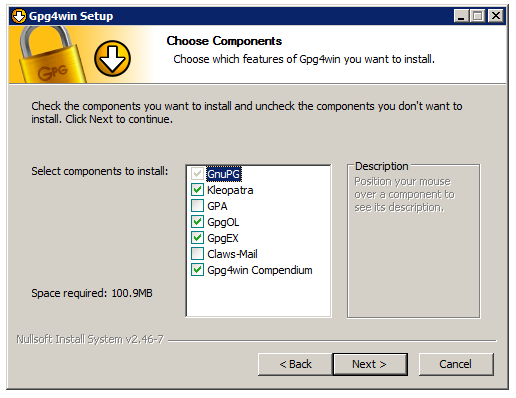
Step 1: Download the Gpg4win on windows machine and install it.
Gpg4win
Step 2: Go ahead and after successful installation, close the window.

Generating your PGP pair key:
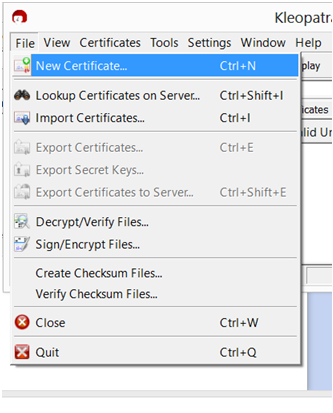
Step 3: Now open Kleopatra tool (A GUI GPG Key Manager) to create a new asymmetric key pair (public & private). Click on File -> New Certificate.
PGP pair key
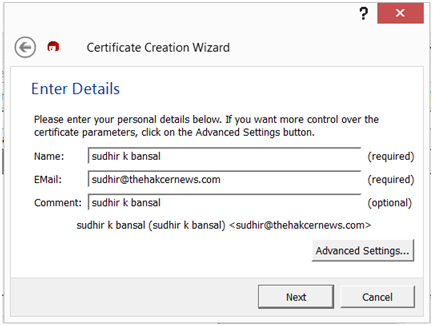
Step 4: In the key generation wizard, click on "Create a personal OpenPGP key pair" and in the next window enter your basic details:
PGP pair key
Step 5: In the next window, once review your details and click "Create Key". It will prompt you for entering a passphrase. Set a strong password and confirm it once again in the next window.

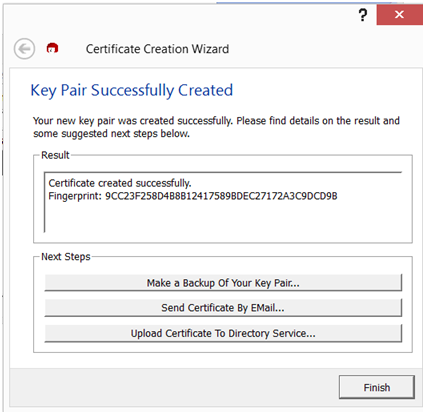
Step 6: Within a few seconds (depending on your system speed), Your Key pair will be generated (as shown).
PGP pair key
Step 7: You should "Make a backup of your file pair" somewhere safe. You can also export the public key to the public directory by clicking on the Upload Certificate to Directory Service.

Step 8: Once done, the key manager main interface will show your certificate as shown:
PGP pair key
Step 9: Select your newly generated certificate -> Right click -> click on Export Certificates to save your Public keys on the desktop.

You will have to exchange your public keys with whom you want to make secure communication via mails. Many people post their public keys to their personal websites. You can send it as attachments to everyone you email, just so they have them.
PGP pair key
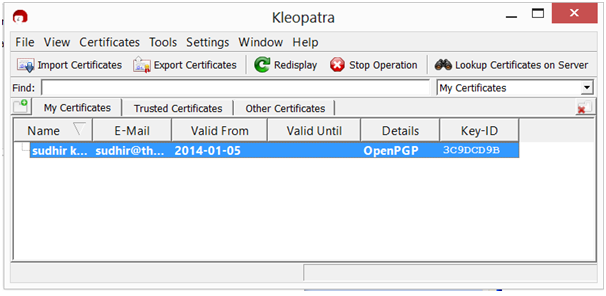
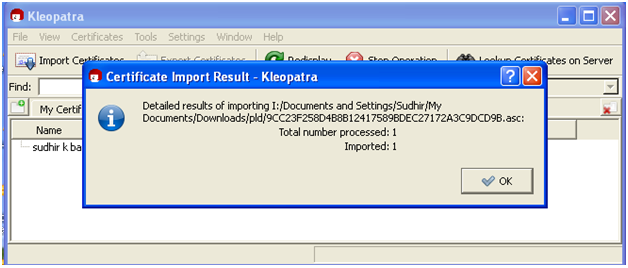
Once your friends will have your Public keys, they can import it Kleoptra software via 'Import Certification' option from the menu.

Composing an encrypted email:
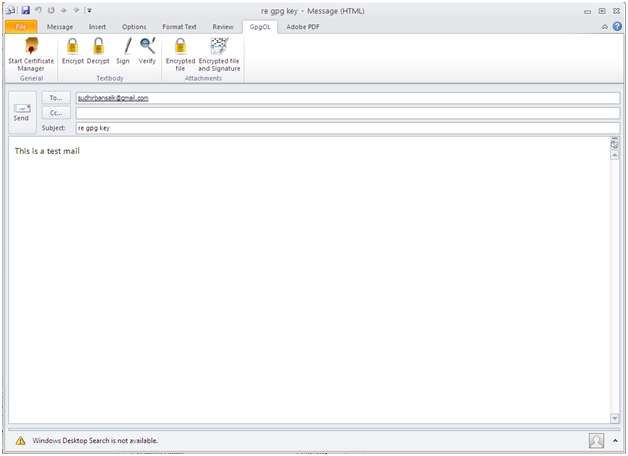
Step 1: Open Outlook -> Compose a new mail and write the recipient’s address, Subject and your message.
PGP pair key
Note: You should already have your email ID configured over Outlook software on windows machine and if your Outlook doesn't have OpenPGP, then you can install 'Outlook Privacy Plugin' to enable it.

Step 2: Under GpgOL menu (as shown), click on 'Encrypt'. The software will automatically import the public keys of the recipient from the Key Manager (only if exists or imported before).
PGP pair key
Step 3: If you also want to attach some files to this encrypted email, then under GpgOL menu, click Encrypted File and select the file to be attached and SEND mail.

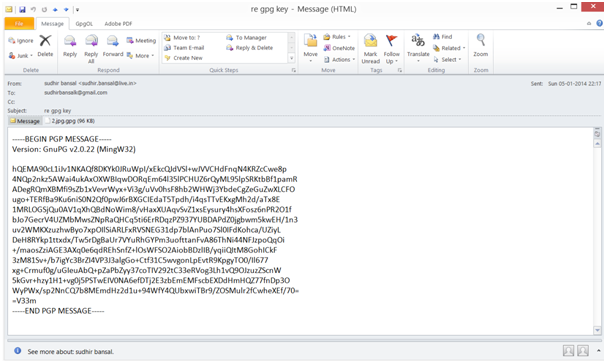
When you or the recipient will receive the encrypted mail, one should first decrypt it using private keys.

Step 4: Under GpgOL menu, click on 'Decrypt' to convert the email into readable form. To proceed, It will ask for  the secret passphrase entered at the time of creation of key pair.

That's it! Other than Outlook you can also use various desktop email clients (Thunderbird or Postbox) or web mail, that also support PGP encryption. You can import your key pair to other software also in order to manage the same account.
Tag : ,
Top | Home | About | Write For Us | Contact | Privacy Policy | Term Of Use | Sitemap
Copyright © 2014 kuch.in All Rights Reserved. Designed by Ashacks Team